Dzees Home
- 4.7
- Rating
- 100.00K
- Installs
- Free
- Price

 Analysis by App-foxy
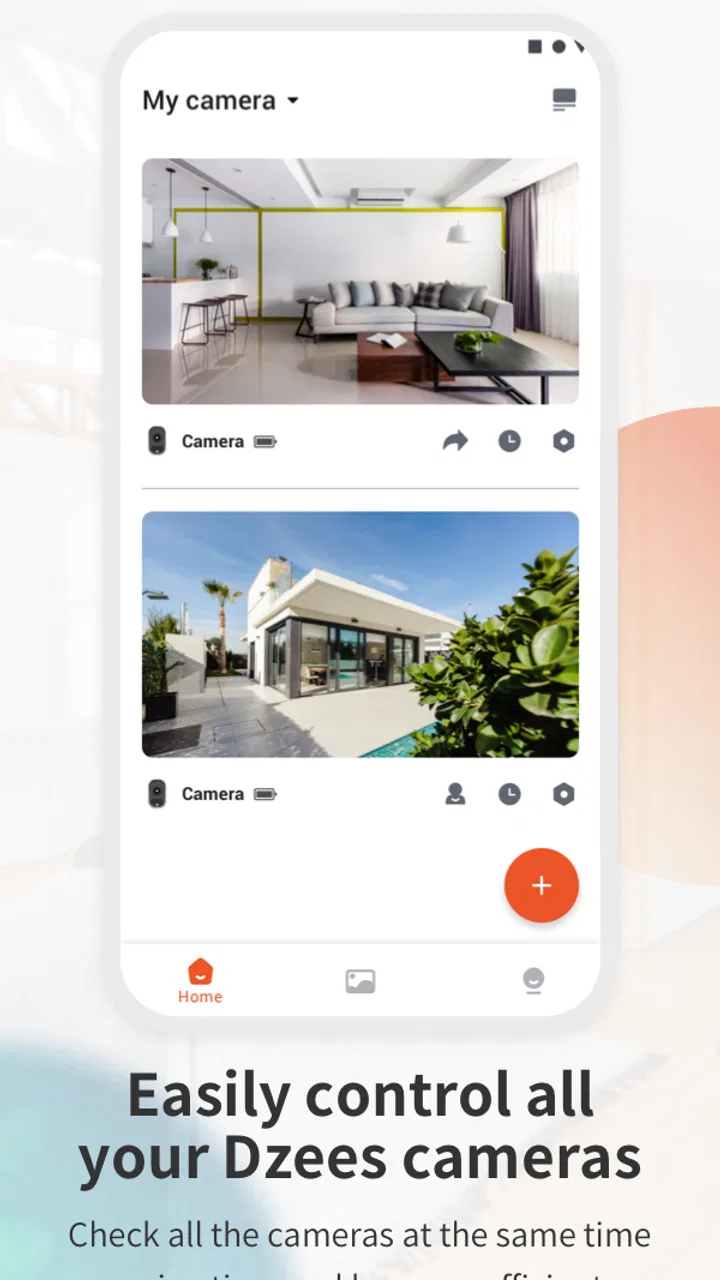
I approached Dzees Home as a practical smart-camera companion rather than as a general-purpose home-control platform. Its purpose is straightforward: help you work with compatible Dzees camera equipment from a phone. That narrow focus is useful, because a camera app should make checking a room, viewing a property, or keeping an eye on a familiar space feel simple. It also means the experience depends heavily on the camera, network, account, and phone working together.
The app comes from yuanxi creation tech and sits in the Tools category. It is free to install, with optional in-app purchases ranging from $1.99 to $158.99 per item. That combination makes it easy to try, but I would still look carefully at any purchase screen before confirming something, especially if you only need basic access to a camera.
Where the experience usually gets stuck
The first difficulty is often not the viewing screen itself. It is getting the app and camera to recognize each other in the correct order. A user may expect to install the app, open it, and immediately see a live image. In practice, smart-camera setup is more sensitive: the phone must be connected to the intended home network, the camera must be ready to pair, and the account flow must be completed without switching between networks or apps at the wrong moment.
You May Also Like

 Blood Strike: 2.5 Anniversary
Blood Strike’s Loadouts Turn Every Drop Into a Tactical Gamble
A close look at Blood Strike’s custom loadouts: how fast access to signature weapons reshapes its battle royale rhythm, rewards preparation, and narrows the gap between fights.

 Pandora - Music & Podcasts
Pandora’s Music Is Easy to Start, but Harder to Recover
Pandora’s strength is its low-effort path from a seed to a station. Its weak spot is how much confidence it asks you to place in connection, setup, and quiet recovery.

 8 Ball Pool
 Is Built on Rivalries, Rematches, and Routine
A close look at the rivalries, rematches, shared routines, and unanswered safety questions that turn a quick pool match into a persistent mobile community.

 Samsung Music
’s Quiet Strength Is Playing What You Already Own
Its reach comes less from spectacle than from dependable access to a personal library. That simplicity is both the app’s strongest retention engine and its ceiling.

 AccuWeather: Weather Radar
AccuWeather Review: A Quick, Clear Forecast for Everyday Decisions
For everyday plans, the best forecast is the one you can understand quickly. AccuWeather makes rain timing, radar, and local conditions easy to act on, with a few trade-offs.

 Hill Climb Racing
Why Hill Climb Racing Still Turns Crashes Into One More Run
A tiny car, a bumpy hill and one more upgrade: Hill Climb Racing keeps resurfacing because its simple chaos makes every near-miss feel personal.
More From Our News Desk



This is where I found that patience matters more than repeatedly tapping the same button. If a device does not appear, starting the pairing process again without checking the phone’s connection can waste time. I would first confirm that the phone is using the home Wi-Fi you actually want the camera to use, then restart the setup from the app rather than trying to force an incomplete device entry.
Another common sticking point is confusing a camera problem with an app problem. A blank view, a device that appears offline, or a pairing attempt that stops can come from several places: the camera may not be ready, the wireless signal may be unstable, or the phone may have moved to mobile data. The app is the visible part of the process, so it receives the blame first, but it is not always the source of the trouble.
I also recommend treating the account step as part of the setup, not as an interruption. If you are installing the app for a family member, decide in advance which person will manage the camera. That avoids ending up with the device attached to one account while another person expects to control it. It is a small organizational choice, but it makes later recovery much easier.
Small checks that prevent a long setup session
Before pairing, I would place the camera close enough to the router for the initial connection and keep the phone nearby. This is not necessarily the final location; it is a temporary way to remove distance from the list of possible causes. Once the camera is working, you can move it and see whether the new position remains reliable.
I would also avoid changing several things at once. If you move the camera, change the Wi-Fi connection, close the app, and retry pairing all together, you lose the ability to tell which change helped. A calmer sequence is more effective: check the phone’s network, reopen the app, confirm the camera’s state, and then retry. If that fails, restart the camera and repeat the process once.
The app is designed for Everyone, which makes its basic purpose approachable, but an age rating does not remove the need for an adult to manage the practical details of a connected camera. Account access, device placement, and who can use the phone deserve more attention than the rating alone suggests.
Setup checks that make Dzees Home easier to use
The current version is 2.0.10, and the app supports Android 7.0 or later. That broad Android compatibility is helpful if you are using an older spare phone as a viewing device. Still, compatibility is only the starting point. An older phone may have less reliable background behavior or slower transitions, so I would keep expectations realistic if the device is being used as a permanent monitor.
My preferred setup routine is deliberately boring. I install the app, connect the phone to the home network, open Dzees Home, and complete the device process while standing near the camera. I then test the live view before mounting or relocating anything. This catches pairing problems while the camera is easy to reach, rather than after it has been placed high on a wall or outside the house.
If the app asks you to scan or enter information from the camera, I would use a bright, steady light and check each character carefully. A small reading mistake can look like a network failure. I would also avoid placing the phone directly against the camera while working through the process, since a clear view of the device and its indicators is more useful than simply holding both objects close together.
One practical tip is to make a note of the network used during setup. People often have separate home networks, guest networks, or a phone that automatically joins a stronger nearby connection. When the camera later appears offline, knowing exactly which network was intended gives you a useful reference point instead of relying on memory.
I would not judge the app’s everyday performance from the first minute after installation. The initial pairing is a special situation with more steps and more opportunities for interruption. The fair test is whether the camera remains easy to reach after the setup is complete, whether the live view opens consistently, and whether the app gives you a clear enough indication when the device is unavailable.
A realistic home scenario
Imagine leaving a camera in a hallway to check whether a delivery has arrived or whether a pet is near the entrance. You open the app during a work break, expect a quick view, and instead see an unavailable device. The most useful response is not to uninstall immediately. First check whether the phone is still on the home network, then close and reopen the app. If the phone works normally elsewhere but the camera remains unavailable, inspect the camera’s power and network position.
This scenario shows both the value and the limitation of a camera companion. Dzees Home can make a remote check much more convenient than physically walking to the room, but it cannot repair a disconnected camera or a weak home network. The app reduces the effort of viewing; it does not eliminate the conditions required for the camera to be reachable.
Recovering a workflow after something goes wrong
When the device disappears from the app, I would use a layered recovery process. Start with the least disruptive action: close and reopen the app. Then check the phone’s connection and whether other internet-dependent apps are behaving normally. After that, inspect the camera’s power and network position. Only then would I consider repeating setup.
This order matters because resetting too early can create extra work. If the camera is already paired and the actual issue is a temporary connection problem, starting from scratch may remove a working configuration without solving the original cause. A reset should be treated as a later step, not as the universal answer.
If the live view opens but behaves inconsistently, I would test from the same room as the router and then from the camera’s intended position. That comparison can reveal whether the problem follows the camera’s location. If it works nearby but not where you plan to use it, the app may be functioning correctly while the placement is asking too much of the wireless connection.
Another useful habit is to change one variable per attempt. Keep the phone in the same place while checking the camera, then move only the camera. Or keep the camera still while changing the phone’s network. This simple method is more informative than repeating the setup randomly, and it helps you decide whether you need to adjust placement, reconnect the network, or revisit the app configuration.
For a shared household, workflow recovery also means knowing who should perform it. If several people use the same camera, I would have one person handle resets and pairing while others report what they see. Multiple people attempting account changes at the same time can turn a small connection issue into a confusing ownership problem.
How it compares with usual alternatives
Compared with checking a camera through a browser, a dedicated mobile app is more convenient for quick checks because it keeps the camera workflow close at hand. You do not need to remember a separate web address or maintain a browser tab. For a person who mainly wants to look in on a compatible Dzees camera from a phone, that focus is a genuine advantage.
Compared with a broader smart-home app, Dzees Home may feel less overwhelming because it is centered on the Dzees camera experience. The trade-off is that it is not the obvious choice for someone who wants one application to combine equipment from many unrelated brands. If your home already depends on a different ecosystem, adding a separate camera app may be less convenient than staying inside the system you already use.
It also differs from a basic local monitor. A local monitor can be simpler when the phone and camera are in the same place, but it is less useful when you want to check a distant room or property. Dzees Home makes more sense when remote access is the reason you bought compatible equipment in the first place.
The important comparison is therefore not “which camera app has the most buttons?” It is “which setup matches the way I intend to use the camera?” For a single-brand Dzees arrangement and occasional phone checks, this app’s focused approach is sensible. For a mixed-brand home or a user who wants advanced automation in one place, another platform may fit better.
When the app is not the cause
It is easy to blame Dzees Home when the picture does not load, but the surrounding equipment deserves a fair test. If the phone cannot maintain a stable connection in the same area, the camera app has little room to work. If the camera is positioned behind several obstacles or at the edge of wireless coverage, an otherwise normal app may still feel unreliable.
Power is another basic check. A camera that has lost power cannot provide a live view, regardless of how often the app is reopened. I would inspect the cable, adapter, and outlet before changing account settings. If the camera has been moved recently, I would also verify that the new location still gives it a dependable connection.
The phone itself can contribute to the problem. Low storage, an outdated operating environment, aggressive battery management, or a crowded network can make an app feel slow or inconsistent. Since the minimum Android requirement is 7.0, an older supported phone may install the app successfully but still offer a less comfortable experience than a newer device.
There is also a difference between a delayed view and a failed view. A brief wait after opening the camera does not automatically mean the setup is broken. I would give the connection a moment, avoid repeatedly switching screens, and then compare the result after reopening the app. Repeated rapid retries can make it harder to tell whether the service is recovering normally.
Finally, I would be careful about what I expect from a free app with optional purchases. The installation cost is zero, but some functions or services may be presented through purchase options, and the listed item range reaches $158.99 per item. I would read the wording on each purchase screen and decide whether the feature is genuinely needed for my use case. Someone seeking only occasional viewing should not assume every paid option is necessary.
Who should use it, and who should skip it
I think Dzees Home is best for someone who already owns compatible Dzees camera hardware and wants a direct phone-based way to check it. It is also suitable for a household that prefers a focused camera tool over a large smart-home dashboard. The free installation lowers the barrier to trying the workflow, while the Everyone rating keeps the app approachable for ordinary household use.
I would hesitate to recommend it to someone who has not chosen compatible hardware yet and is mainly comparing complete ecosystems. In that situation, the camera, network behavior, account arrangement, and available services matter as much as the app interface. I would also point mixed-brand households toward a platform that already brings their devices together if avoiding multiple apps is a priority.
It may not be the right pick for a user who expects the app alone to solve weak Wi-Fi, power interruptions, or complicated home-network restrictions. Those are infrastructure issues. A good camera app can make them easier to identify, but it cannot replace a stable installation.
My practical verdict
After looking at the complete workflow, I see Dzees Home as a useful, focused tool rather than a universal smart-home solution. Its strongest quality is convenience for people using compatible Dzees cameras: once the connection is established, a phone is a much easier way to check a familiar space than physically going there every time.
The setup deserves a careful first attempt. Keep the phone on the intended network, pair the camera near the router, test the live view before mounting it, and change only one thing at a time when troubleshooting. Those habits do more to improve the experience than repeatedly reinstalling the app.
The app has a 4.7 average from around 3.3 thousand ratings and has passed 100 thousand installs, which suggests that many people find the basic idea worthwhile. I would treat that popularity as encouragement, not as a guarantee that every home will behave the same way. Wireless conditions, phone age, camera placement, and account organization still decide much of the day-to-day experience.
For a compatible Dzees setup, I would recommend giving it a fair trial, especially if you want simple remote camera access without adding a broad smart-home platform. I would skip it when your priority is mixed-brand control, advanced household automation, or an app that can compensate for unreliable network equipment. In short, the best results come from treating Dzees Home as one part of a camera system, not as the entire system.
FAQs for Dzees Home
01What is Dzees Home, and what can I use it for?
Dzees Home is a companion app for compatible Dzees smart security cameras and monitoring devices. After pairing your equipment, you can typically view live video, review recordings, receive motion alerts, use two-way audio, and adjust camera settings from your Android or iOS device. The exact features available depend on the Dzees camera model, firmware version, subscription options, and the permissions granted to the app.
02How do I connect a Dzees camera to the Dzees Home app?
To set up a camera, install Dzees Home, create or sign in to an account, and follow the in-app pairing instructions. Most devices require a stable Wi-Fi connection, commonly on the 2.4 GHz band during initial setup. You may need to scan a QR code displayed on your phone with the camera. Keep the camera near the router, enable Bluetooth or location access if requested, and make sure the device is reset before retrying a failed connection.
03Does Dzees Home require a subscription or offer cloud storage?
Dzees Home can generally be used for basic camera control and live viewing without necessarily requiring a paid plan, but some advanced services may be optional or model-dependent. Cloud recording, longer video history, enhanced notifications, or additional storage can require a subscription. Many compatible cameras also support local storage, such as a microSD card. Check the specific camera listing and the in-app plan details before purchasing equipment or relying on cloud recordings.
04Is Dzees Home safe and suitable for privacy-sensitive camera monitoring?
Dzees Home is designed to manage connected security cameras, so privacy depends on both the app and how the devices are configured. Use a strong, unique account password, enable available security options, update the app and camera firmware, and avoid sharing access unnecessarily. Review microphone, camera, storage, notification, and location permissions before accepting them. Users should also understand where recordings are stored and review the provider’s current privacy policy.
05What should I do if live video, alerts, or camera playback are not working?
Start by checking that the camera and phone have a reliable internet connection, then close and reopen Dzees Home. Confirm that notifications and required permissions are enabled, the camera is powered on, and its firmware and the app are up to date. If playback is unavailable, inspect the cloud plan or microSD card status and verify that recording is enabled. Restarting the camera and router can help; if problems continue, use the app’s support options and provide the camera model and error details.
Pros
- Clear live video helps monitor rooms
- pets
- or family remotely.
- Motion alerts can notify you quickly when activity is detected.
- Two-way audio enables convenient communication through the camera.
- Cloud and local storage options may suit different recording needs.
- Supports multiple cameras for broader coverage around your home.
Cons
- Some advanced features may require a paid subscription.
- Video quality depends heavily on your Wi-Fi connection and camera placement.
- Frequent alerts can become distracting without careful sensitivity settings.
- Privacy concerns may arise when using internet-connected indoor cameras.
- Compatibility and setup can vary across different Dzees camera models.

Dzees Home
Gallery